Twitch Drops Thread

-
We recently made some changes on how to link your account for Twitch Drops. Below are instructions on how to link your account as a viewer and instructions on what to do if you plan on broadcasting and want your stream to be Drops Enabled.
Account Linking
To earn Twitch Drops you much have an MLB The Show Account, your platform account (PlayStation, Xbox, Nintendo Switch) connected to your MLB The Show Account, and your Twitch account connected to your MLB The Show Account.
Step 1
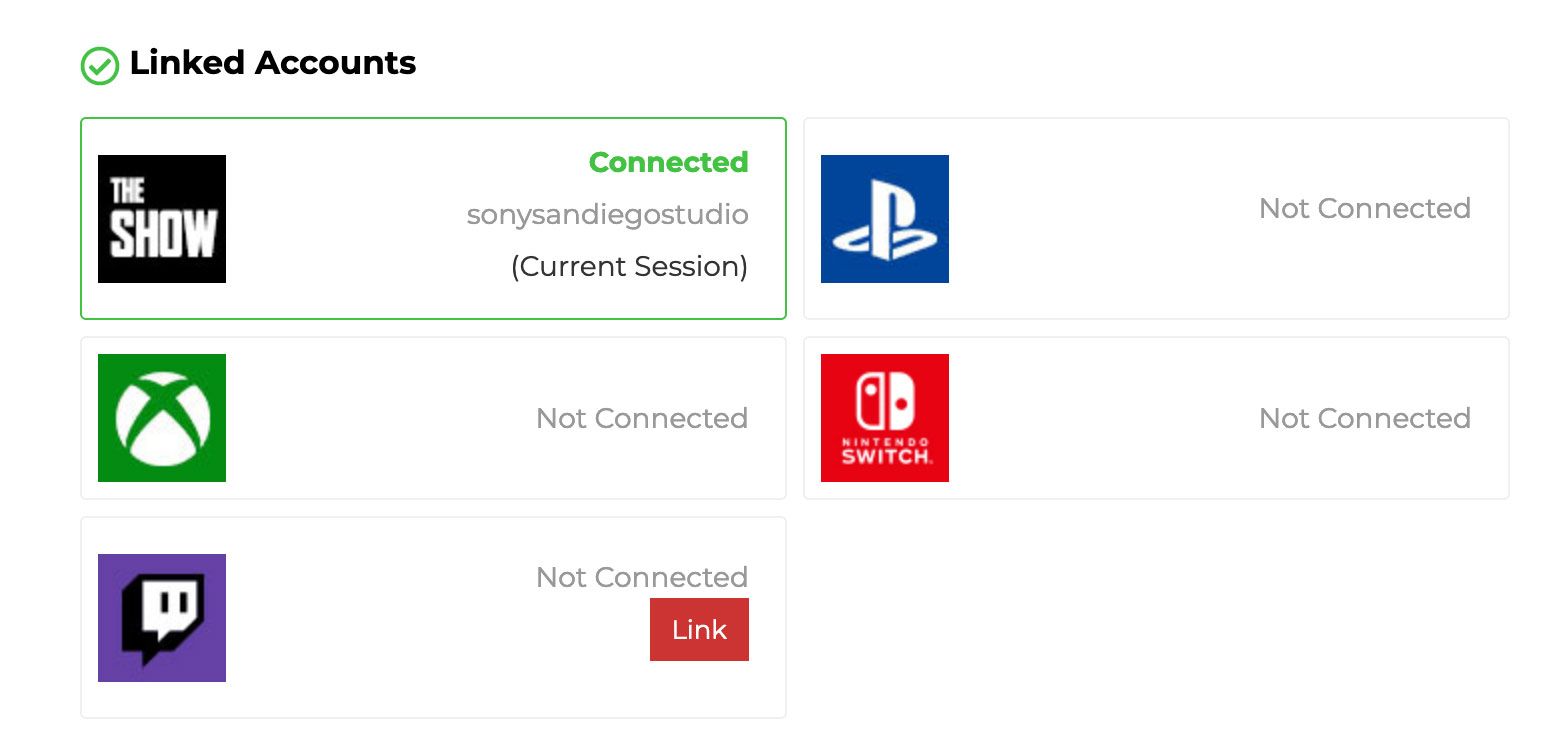
Create an MLB The Show Account here. Once you create your account page should look like this.
Step 2
Link your PlayStation, Xbox, or Nintendo Switch account to your MLB The Show Account.
You can generate your unique link code in-game by going to My Profile within Universal Profile and selecting Link Account.
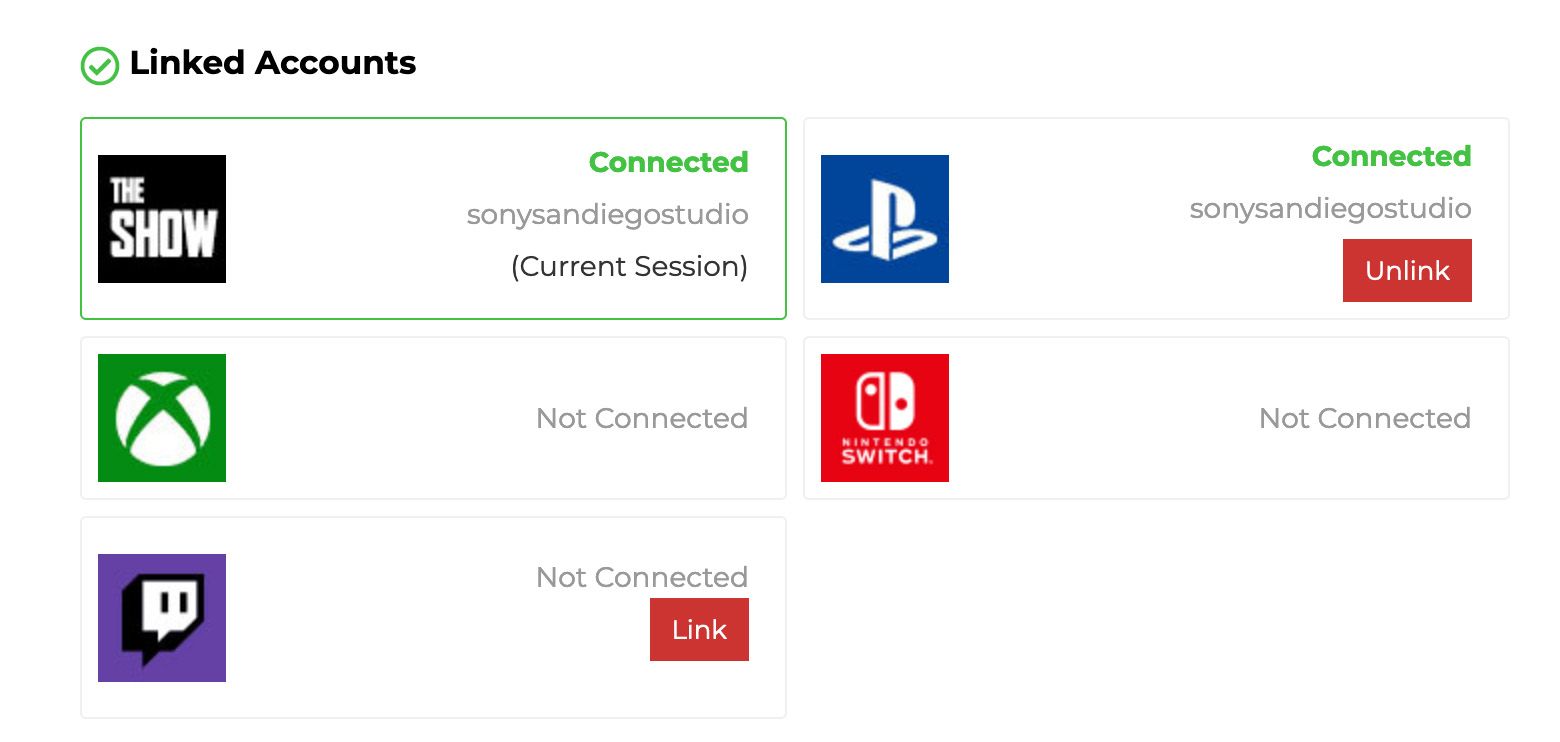
Follow the instructions provided in-game and enter the code. Once your account is linked, it should look like this.
Step 3
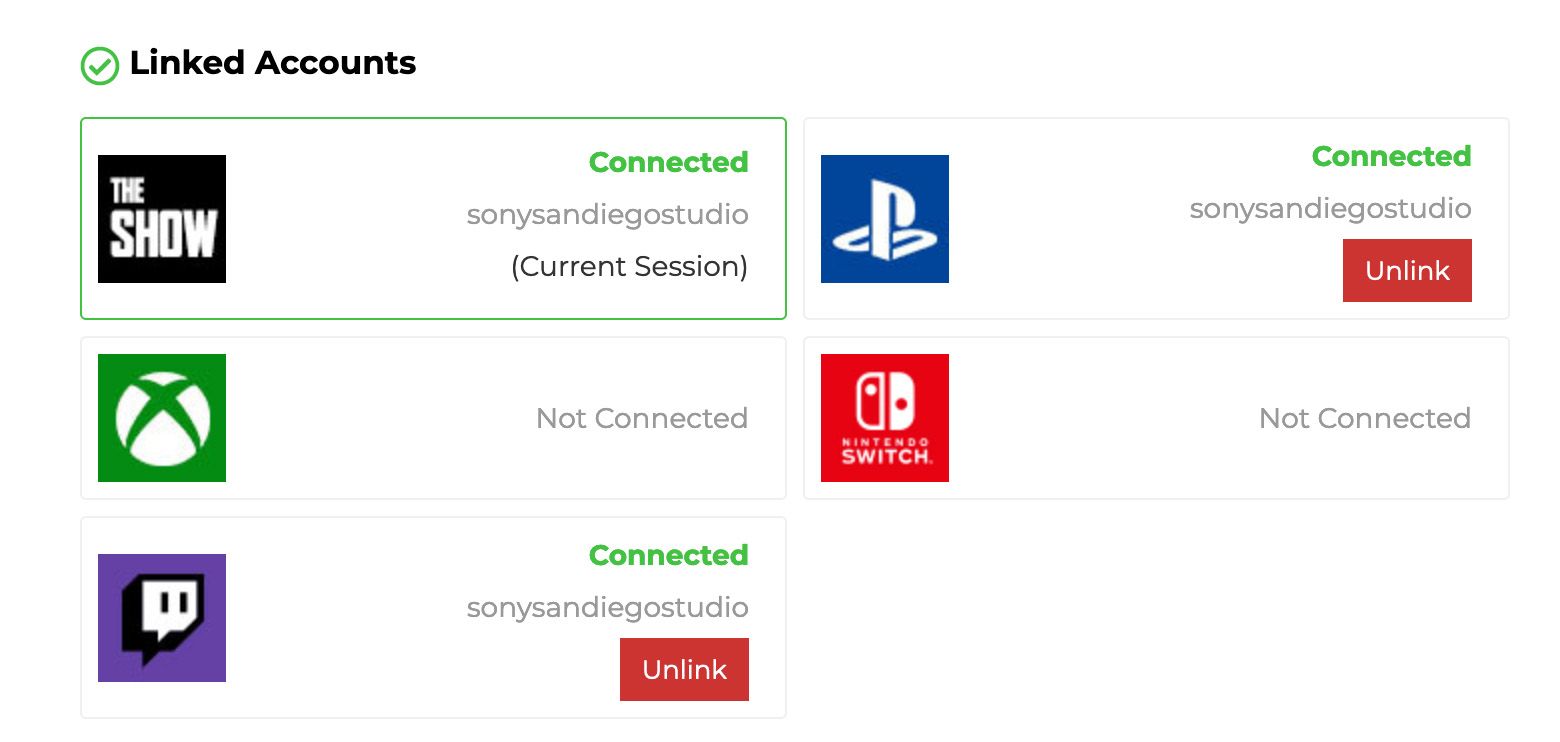
Connecting your Twitch Account can be done by going to your MLB The Show Account and clicking Link. This will have you log into Twitch and authorize the connection. Make sure you link to the correct Twitch account. Once you link your account it should look like this and you can start watching and earning Twitch Packs.
Broadcasters
For broadcasters wanting to have DROP ENABLED stream, you need to do the following.
Turn on Twitch Drops from Viewer Rewards in the account settings on Twitch.

Set the Category to MLB The Show 23 in Stream Info on Twitch.
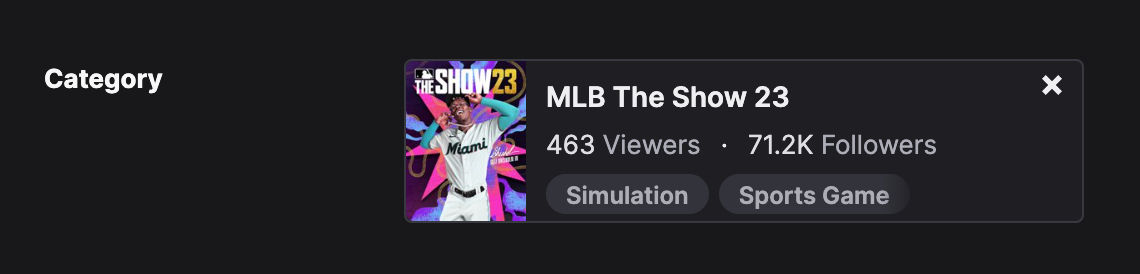
If your account is linked correctly and Twitch Drops are enabled and the Category is set to MLB The Show 23, you should have the DROPS ENABLED tag added to your stream.
Troubleshooting
We did make some changes and some players link between their MLB The Show Account and Twitch needs to be reset and relinked. This requires players go unlink from both your MLB The Show Account and Twitch.
Unlink on Twitch.tv
To unlink your Twitch account, go to Connections within the Settings within your Twitch Account. From here find MLB The Show and click Disconnect.
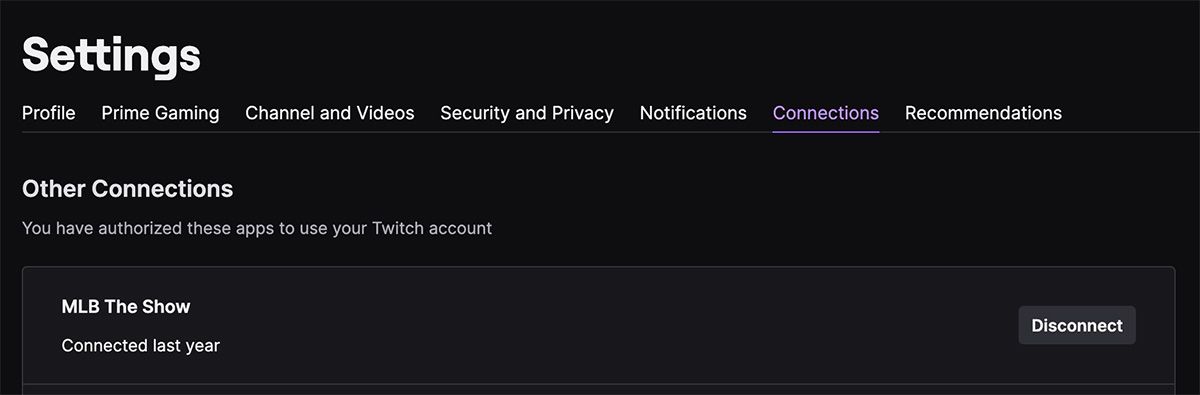
Unlink on MLB The Show Account
To unlink Twitch from your MLB The Show Account, just click Unlink from your account page.
Once you have unlinked both, start with Step 3 in the instructions above.
Claim your Pack
Once you have watched enough time to earn a pack you will be presented with the ability to CLAIM your pack. You must do this for the back to be added to your inventory. Also you must claim any pending packs before any future time is counted. So make sure you claim those packs.
My Packs didn't arrive after claiming?!
In some scenarios packs may not arrive to your in-game inventory after claiming on Twitch. One thing you can try is to close and restart MLB The Show 23 on the platform you are playing on. Please note, that just rebooting your machine may not work as the game could be in a suspended state, so make sure you close or quit the title on the platform you are playing on and then restart MLB The Show 23.
Support Portal
In the scenario that you are not earning or packs are not being delivered to your MLB The Show 23 inventory, you can submit a ticket from our support page.
To help us identify the issue, please include your MLB The Show Account Name, your PlayStation, Xbox or Nintendo Switch name and your Twitch account name in the ticket. This will help us identify and resolve any issues quicker. -
A admin locked this topic on